Pages? We don't need no stinking pages!
 |
Badges?
We don't need no stinking badges! |
(Name that movie.) Well, yes, we
do need pages. So far on Blogger, you've been primarily making use of
posts.
Posts are the most common way to update a blog. They appear on your
home blog page, and with time they get pushed down and off the main page
by more current posts.
Pages are more of a static entity. They
stay put, and they are accessible by name from a menu on your site. You
can put as much or as little on a page as you like - and you can add to
them or edit them over time.
We will make a page for your Bio information, along with a handy link to it near the top of your blog.
Make a PAGE
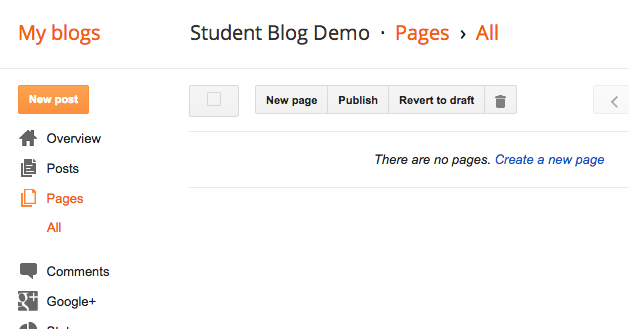
In your design menu, go to Pages, and then press the New page button at the top.
Name your page - About Me and Bio are typical names for this. You can always rename it later.
(This example was for something different.)
Add in the Content
Edit the page the same way you have been editing posts. This time, you need a photo (a semi professional one), a paragraph of bio info (you don't need as much as this example), and then your elevator pitch. (If you did not write your elevator pitch yet, the instructions are
here.)
 |
You only need 1 paragraph of bio info.
Instead of Skills, copy&paste your elevator pitch in here! |
When finished, press the Publish button.
And... nothing happens.
That's
because pages aren't blog posts - they come up by choosing them from a
menu, as opposed to being displayed sequentially on your home page. So...
Add the Pages Gadget:
Now you need to go to your Gadgets in the layout menu, and scroll down to find the Pages gadget. Click the plus to add it.
This Pages gadget is basically a Pages Menu gadget.
Page names are on the left, and will only appear in the menu if you have their boxes checked.
Once
the pages are checked, you may reorder them on the right side. By
convention, you should either place the Home page first or last.
(Yours will be Bio or About Me, instead of Graphics.)
Press Save when finished.
You may either position your Pages menu in one of the sidebar gadget spots, or...
... in a gadget at the top, in which case it looks like either a menu bar or tabs.
If your gadget doesn't show up, try moving it to a different location.
Test out the link in your gadget to make sure it is working.
Revisit your page now and then to keep it updated!
Here's another quick reference from Blogger on some of the details of pages and the pages gadget that were not covered above: Blogger Buzz
 e-Communication students have occasional required blog posts of various types that we think are important to assist in learning or demonstrate learning of e-Comm material. However, to really have an interesting and well-rounded blog, you may want to also include other kinds of posts.


